Print Bridge: 7 Ways to Print From Anywhere — Web, AI Agents, Auto-Orders & More (2026)
Print Bridge: 7 Ways to Print From Anywhere — Web, AI Agents, Auto-Orders & More (2026)
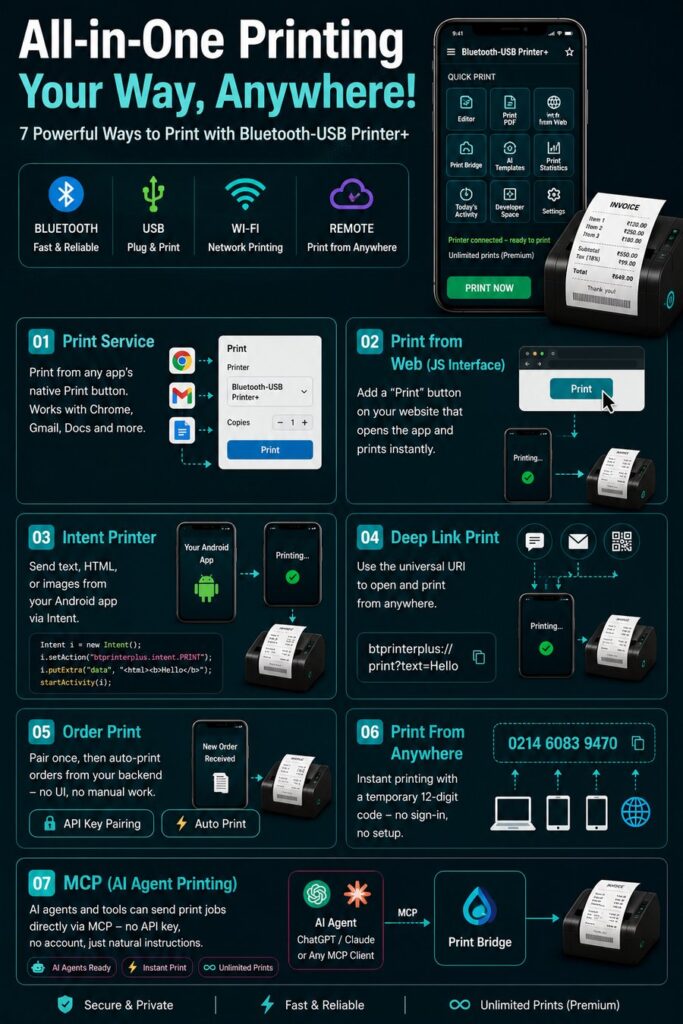
Quick answer: Print Bridge is a free relay service built into Bluetooth Printer+ that lets a website, your own backend, or an AI agent like Claude or ChatGPT send a print job to whatever thermal printer your phone is already connected to — Bluetooth, USB, or Wi-Fi. There are 7 ways to connect, from a one-tap system Print button to a full MCP server for AI agents, and the simplest ones need no account, no API key, and no setup at all.
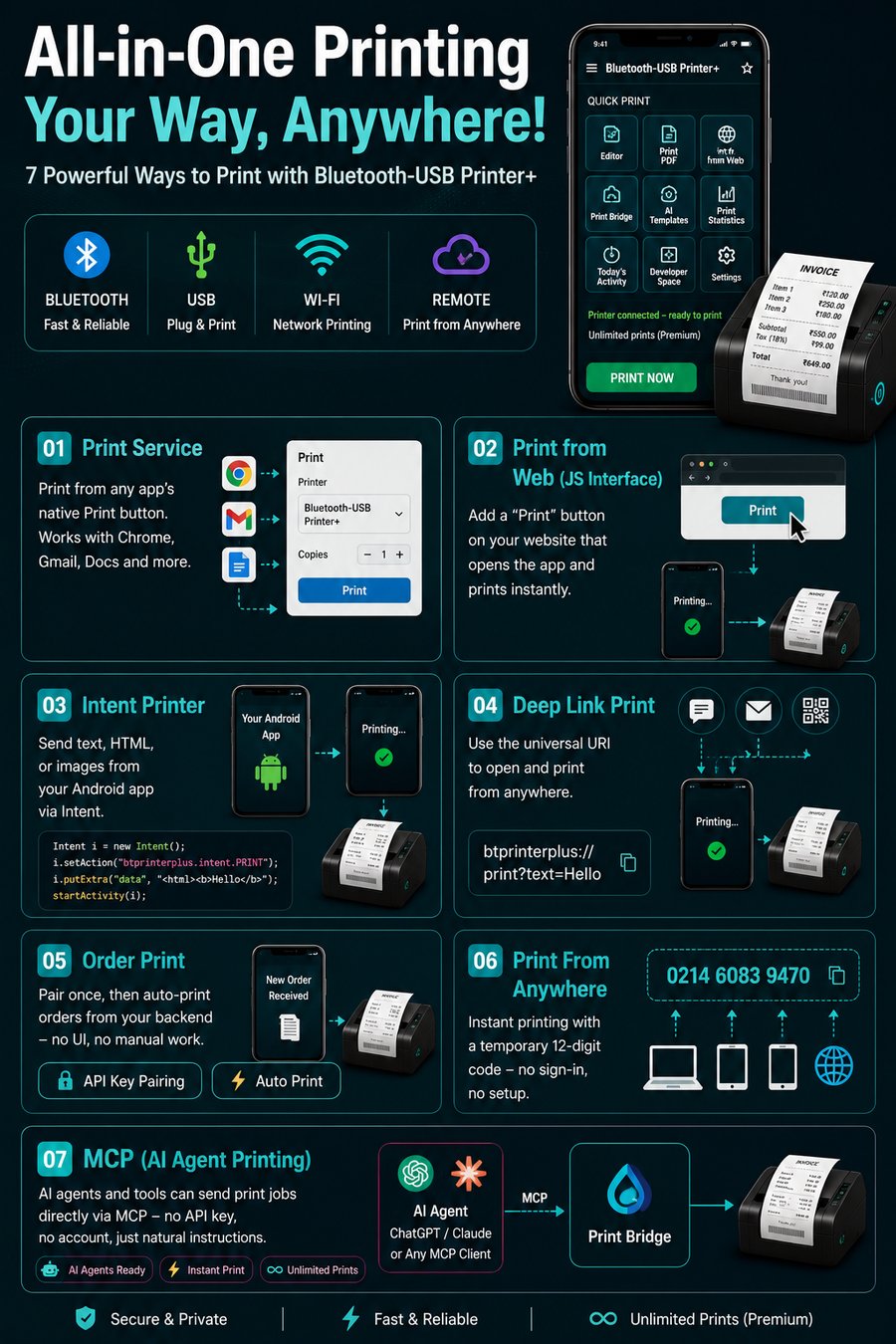
Most Bluetooth printer apps only do one thing: you open the app, type something, and print it yourself. Print Bridge is different — it turns your phone into a print destination that other things can reach. A website’s “Print Receipt” button, an order landing in your online store, a script on your laptop, or an AI agent you’re chatting with can all push a job to your phone’s paired printer, without you touching the app each time. All of it runs through printbridge.bluetoothprinter.in and the Bluetooth Printer+ app, and every method below is free to start.
The 7 Ways to Print with Print Bridge
1. Print Service — From Any App’s Native Print Button
Bluetooth Printer+ registers itself as a normal Android Print Service, so it shows up as a destination in the standard system print dialog — the one you get from Chrome’s menu, Gmail’s print action, or Google Docs. No code, no setup beyond a one-time toggle: turn it on under Settings → Connected devices → Printing → Bluetooth-USB Printer+, then pick it from any app’s Print button.
2. JavaScript Interface — A “Print” Button on Your Website
Add a plain client-side JavaScript snippet to your website and it opens Bluetooth Printer+ on the visitor’s own phone and prints immediately — no backend, no API key:
function printReceipt() {
  const content = "Thank you for your order!\nTotal: $24.50";
  window.location.href =
    "btprinterplus://print?content=" + encodeURIComponent(content);
}
3. Intent Printer — Send Text or Images from Your Own Android App
If you’re building a native Android app, send text, HTML, or images to Bluetooth Printer+ using a standard share Intent — the same mechanism apps use to share to WhatsApp. No pairing or internet needed; everything happens locally on the phone.
4. Deep Link Print — The Universal btprinterplus:// URI
This is the building block underneath both the JavaScript Interface and Intent Printer — a URI you can open from literally anywhere: a QR code, an SMS, an email, or ADB.
btprinterplus://print?content=Hello%20World
It also supports a lightweight markup syntax for bold text, alignment, dividers, and QR codes (**bold**, [center]...[/center], [qr]data[/qr]), plus placeholder_<name> query params to fill in [[name]] tokens with real values at print time.
5. Order Print — Auto-Print Orders from Your Backend
This is the one for “a customer places an order on my website → a receipt prints automatically at the shop,” with no one touching the app. Pair once, then push jobs from your server in the background — even while the app is closed:
- Sign in at printbridge.bluetoothprinter.in (Google or email link, no password) and copy your API key from the dashboard.
- In the app: Developer Space → Order Print → Auto Pairing, paste the API key, tap Connect.
- Push orders from your backend to
POST https://printbridge.bluetoothprinter.in/api/v1/print/orderwith anX-API-Keyheader.
curl -X POST https://printbridge.bluetoothprinter.in/api/v1/print/order \
  -H "X-API-Key: prk_xxxxxxxxxxxxxxxxxxxx" \
  -H "Content-Type: application/json" \
  -d '{"text":"Hello from my POS!"}'
6. Print From Anywhere — A 12-Digit Code, No Account
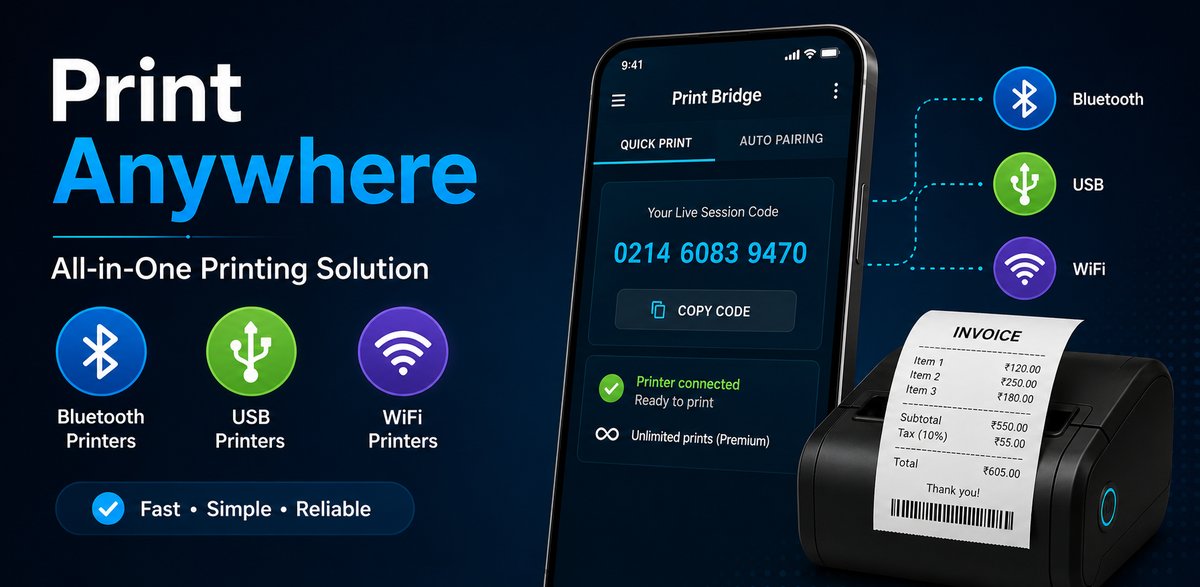
The fastest way to print something once, right now, from any device. Open the Print Bridge screen in the app — it shows a live 12-digit code. Enter that code at printbridge.bluetoothprinter.in on any laptop, phone, or PC, type or paste your content, and print — no login on either side. The code is a temporary session: it’s live only while that screen stays open on the phone.
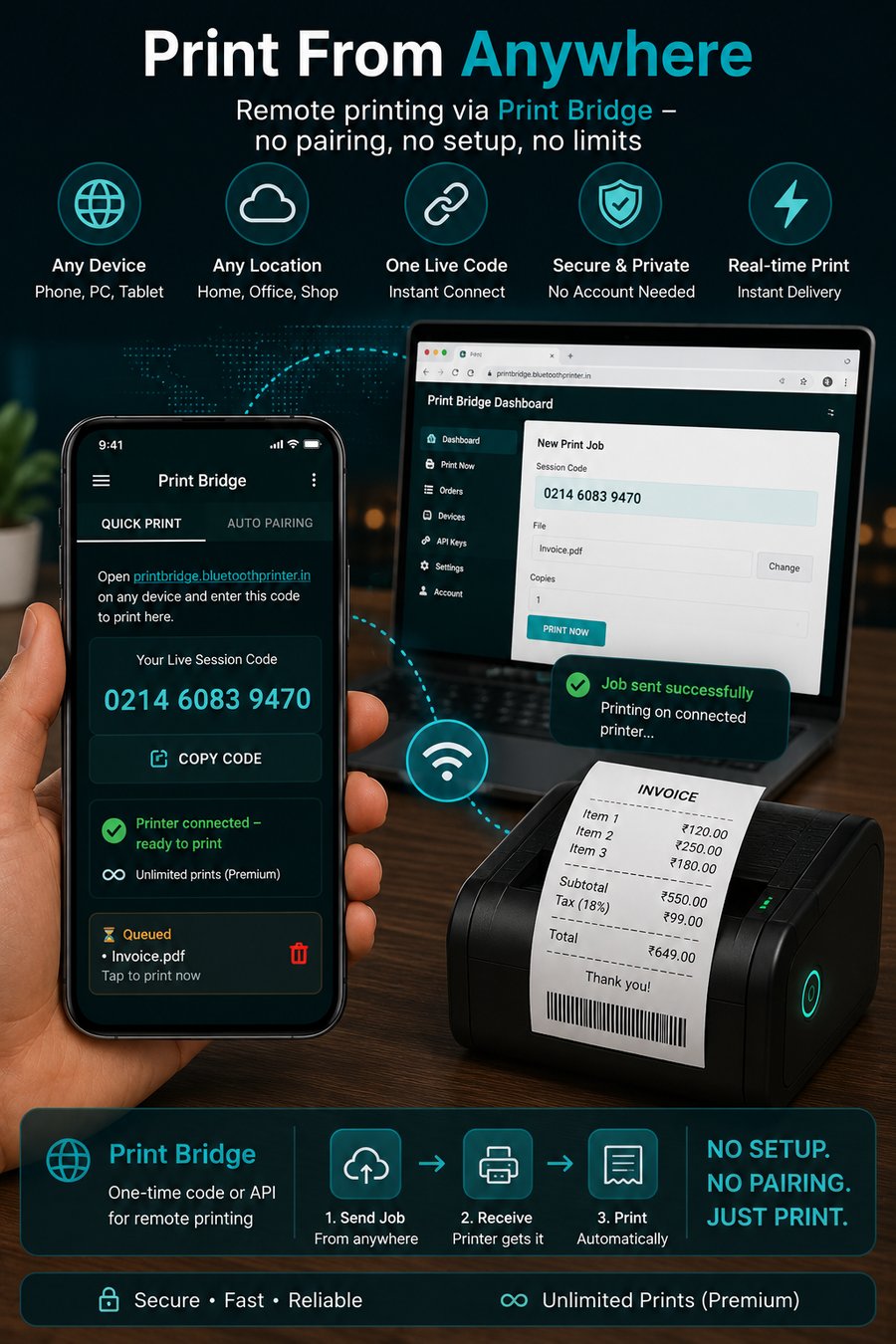
7. MCP — Let an AI Agent Print for You
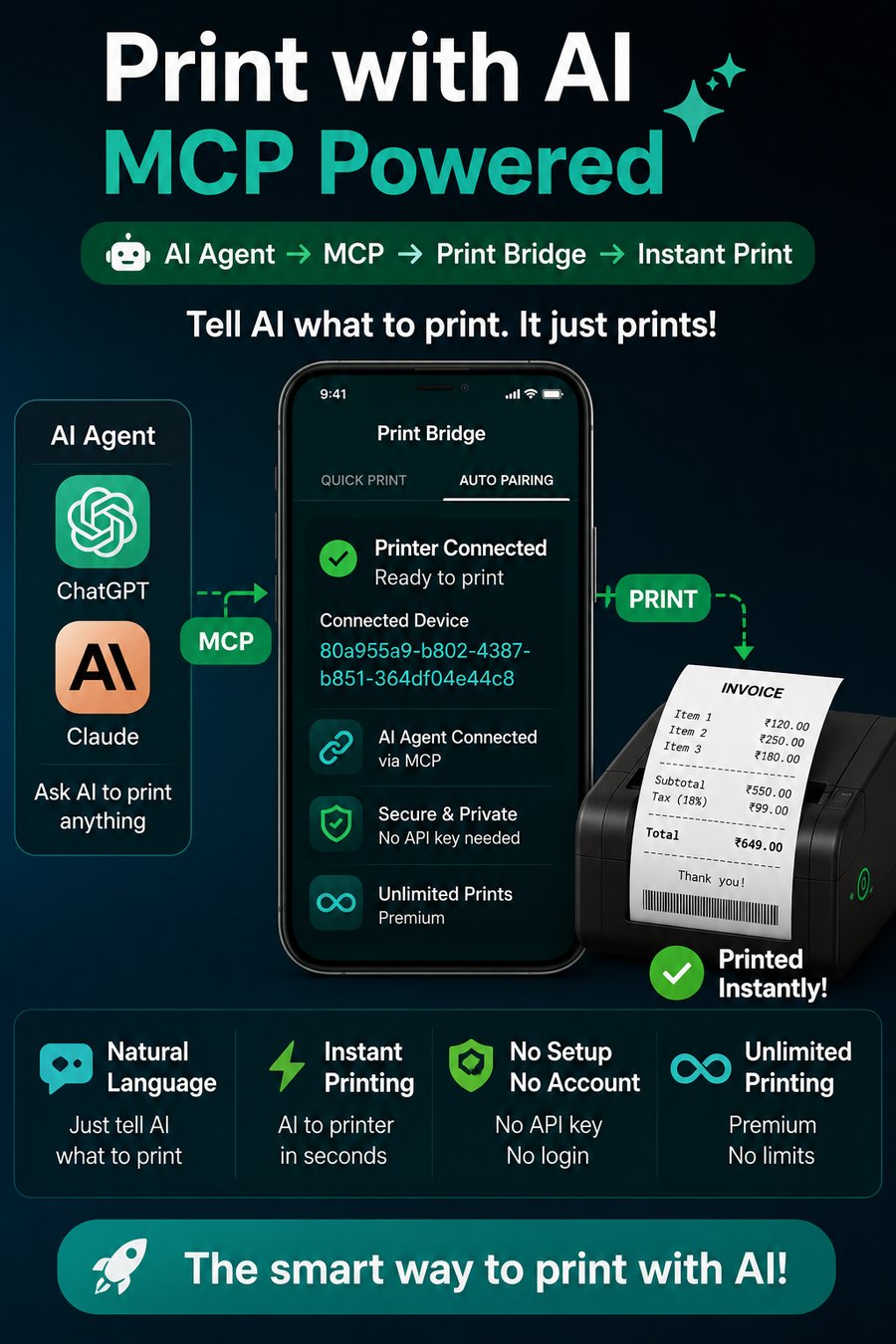
Print Bridge runs a full Model Context Protocol server, so Claude Desktop, Claude Code, ChatGPT, or any MCP-compatible agent can print directly — you just ask in plain language, no code required on your side.
How to Connect an AI Agent to Print Bridge via MCP
The MCP server lives at https://printbridge.bluetoothprinter.in/mcp. There are two ways to connect, depending on whether you want the agent to print to your own paired devices or just print using a phone’s temporary code.
Option A: Connect with Your API Key (for your own paired devices)
Add this to your MCP client’s config — for Claude Desktop, that’s claude_desktop_config.json:
{
  "mcpServers": {
    "print-bridge": {
      "url": "https://printbridge.bluetoothprinter.in/mcp",
      "headers": { "X-API-Key": "prk_xxxxxxxxxxxxxxxxxxxx" }
    }
  }
}
Get your API key from the “API key” card on the printbridge.bluetoothprinter.in dashboard after signing in. Once connected, just ask: “Print ‘Hello from Claude!’ to my printer” — the agent calls the print_text tool automatically.
Option B: No API Key — Just a 12-Digit Code
Don’t want to add an API key to your MCP config at all? Open the Print Bridge screen on your phone for its live code, then ask your agent: “Print ‘Table 4 ready’ using code 384729104756.” The agent calls print_now, which needs nothing but the code.
What the MCP Tools Can Do
| Tool | Needs API Key? | Does |
|---|---|---|
print_text | Yes | Print plain text to a paired device |
print_order | Yes | Print a structured order receipt |
print_formatted | Yes | Print lines with bold/underline/divider/align/QR |
list_devices | Yes | List your paired phones and their status |
get_job_status / list_recent_jobs | Yes | Check what happened to a print job |
print_now | No | Print using a phone’s temporary 12-digit code |
generate_print_link | No | Build a btprinterplus:// link for a human to tap on their own phone |
get_setup_help | No | Asks the agent to explain any of the 7 integrations, with correct code |
For a placeholder-driven template — say, filling in a customer’s name at print time — ask the agent for a print link instead: “Give me a print link for ‘Hello [[name]], your order is ready’ with name = John.” It calls generate_print_link, which returns a btprinterplus:// link you open on your own phone; this can’t be triggered remotely, by design, since a template with a placeholder needs a person to confirm the value.
Free Tier and Limits
Print From Anywhere, Order Print, and MCP’s account-scoped tools all share one free-tier limit: 10 total prints per device. Print Service, JavaScript Interface, Intent Printer, and Deep Link Print — the four methods that print directly through the app rather than relaying through the server — aren’t metered by that limit. Premium removes the 10-print cap for unlimited relayed printing.
Frequently Asked Questions
Do I need an account to use Print Bridge?
No — Print From Anywhere’s 12-digit code and the direct app integrations (Print Service, JavaScript Interface, Intent Printer, Deep Link Print) all work with no sign-in. An account and API key are only needed for Order Print’s background auto-printing and the account-scoped MCP tools.
Can I connect ChatGPT or Claude to print directly?
Yes. Print Bridge runs an MCP server at https://printbridge.bluetoothprinter.in/mcp that Claude Desktop, Claude Code, and any MCP-compatible agent can connect to — either with your API key for your own devices, or with no key at all using a phone’s temporary 12-digit code.
What’s the difference between Print From Anywhere and Order Print?
Print From Anywhere is a one-off, no-account push using a temporary code that expires when the app screen closes — good for printing something once, right now. Order Print is a permanent pairing using your API key, built for unattended background printing from a live backend, like an e-commerce order queue.
Does this work with any Bluetooth thermal printer?
Yes. Print Bridge relays to whichever printer your phone is already connected to through Bluetooth Printer+ — any ESC/POS-compatible thermal printer over Bluetooth, USB, or Wi-Fi works the same way.
Get Started
Download Bluetooth Printer+ on Google Play →
Open Print Bridge →
See the full Bluetooth Printer+ page →