How to Print A4 & Thermal Bills Using Simple Bluetooth Printer

Quick answer: In Simple Bluetooth Printer, go to Settings → Printer Width and choose 58mm, 80mm or Custom Width. Use Custom Width for 4-inch (112mm) and A4-style layouts on wider printers; everything you print then aligns to that width automatically.
Printing bills shouldn’t be confusing.
With Simple Bluetooth Printer, you can easily print on 58mm, 80mm, and even custom widths like A4-size layouts—all from your mobile.
This guide explains which paper size to use, where it’s commonly used, and how to configure it inside the app.
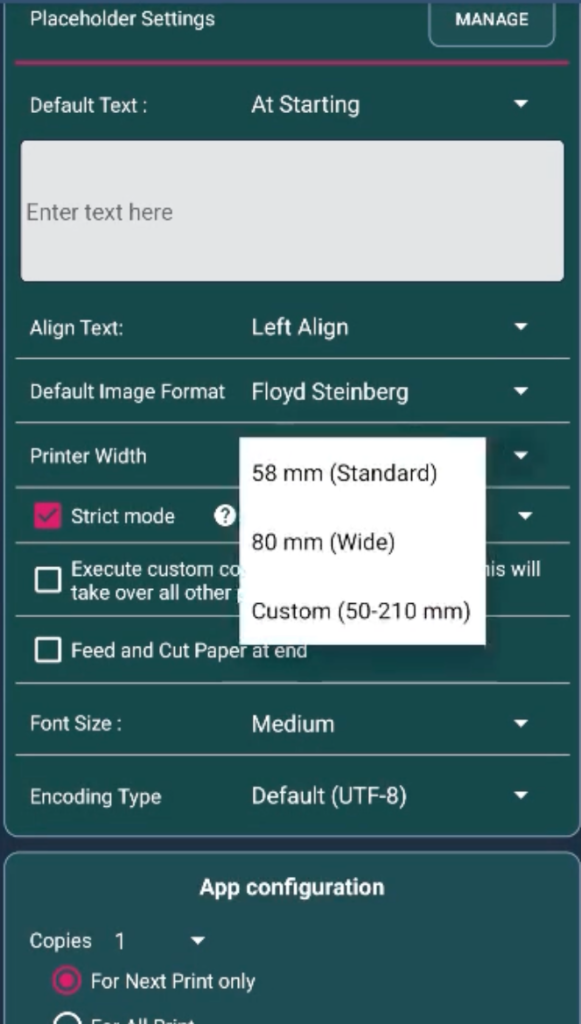
Step 1: Configure Printer Width in Settings
- Open Simple Bluetooth Printer
- Go to Settings
- Select Printer Width
- Choose:
- 58mm
- 80mm
- Custom Width (for A4 or large formats)
That’s it.
Once set, all content automatically aligns to the selected width.
Common POS & Thermal Paper Sizes Explained


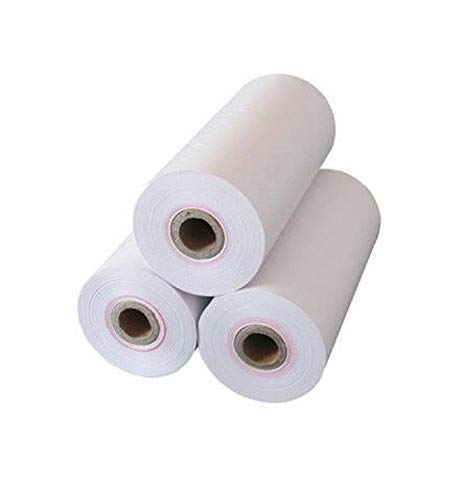
2-Inch (58mm) Thermal Paper
- Width: ~58mm
- Common Sizes: 57×35mm, 57×40mm
- Best For:
- Mobile POS devices
- Handheld billing machines
- Small shops & kiosks
- Why choose this?
- Compact
- Low paper usage
- Easy to carry
3-Inch (80mm) Thermal Paper
- Width: ~80mm
- Common Sizes: 80×60mm, 80×80mm
- Best For:
- Retail stores
- Supermarkets
- Restaurants & hotels
- Why choose this?
- More space for item details
- Clear tax & total display
- Industry standard for billing
4-Inch (112mm+) / A4-Style Layouts
- Width: 112mm and above
- Examples: 4×6 inches, A4-style formatted prints
- Best For:
- Shipping labels
- Logistics & warehouse documents
- Large invoices
- How to use in the app?
- Select Custom Width
- Enter the required width manually
- Content auto-scales and aligns
Where Each Paper Size Is Commonly Used
🏪 Retail / POS Billing
- 80mm: Standard counter billing
- 58mm: Handheld or mobile billing
📦 Label Printing
- 2-Inch: Inventory & product labels
- 4-Inch: Courier & shipping labels
🎟 ATM / Ticketing Systems
- 80mm
- Roll length can go up to 200 meters
Smart Printing Features You Get
✔ Automatic Text Alignment
- Text adjusts automatically based on printer width
- No manual spacing needed
✔ Strict Mode Support
- Prevents layout breaking
- Ensures clean, predictable output
✔ Image Printing
- Print logos, QR codes, barcodes, and images
- Scales perfectly to paper width
✔ Direct Text Printing
- Just type → print
- Alignment handled by the app
Why This Matters
Different businesses use different printers.
Instead of changing your workflow, Simple Bluetooth Printer adapts to your printer.
Whether you’re printing:
- a small receipt
- a restaurant bill
- or a large A4-style invoice
You configure once—and print confidently every time.
Final Tip
If your print looks too tight or too wide:
- Just go back to Settings → Printer Width
- Switch between 58mm / 80mm / Custom
- Reprint instantly
No trial-and-error. No wasted paper.
Frequently Asked Questions
Can I print A4-size bills with Simple Bluetooth Printer?
Yes, if your printer supports wider paper. Go to Settings → Printer Width, choose Custom Width and enter the width. The content then scales and aligns to that width automatically.
What is the difference between 58mm and 80mm thermal paper?
58mm (2-inch) paper is used in handheld and mobile billing and small shops, and uses less paper. 80mm (3-inch) paper is the standard for counter billing in retail stores, supermarkets and restaurants, with more room for item details, tax and totals.
Which paper size should I use for shipping labels?
Use 4-inch (112mm and above) paper, such as 4×6 inch labels, for courier and shipping labels. 2-inch labels suit inventory and product labels.
How do I fix a print that looks too tight or too wide?
Go to Settings → Printer Width, select the width that matches your paper roll (58mm, 80mm or Custom), and print again.