How to Print QR Codes and Barcodes from Your Android Phone
How to Print QR Codes and Barcodes from Your Android Phone
QR codes are everywhere in retail and hospitality now — UPI payment confirmations, restaurant menu links, warranty registration, loyalty programs. Barcodes are just as essential for inventory and checkout. If you’re running a shop, restaurant, or small warehouse, printing either one directly from your phone to a thermal printer is faster and cheaper than a laser printer and sticker paper. Here’s how to do it.
Quick answer: Simple Bluetooth Printer generates and prints QR codes and barcodes (CODE128, EAN13, UPC-A) directly on any 58mm or 80mm Bluetooth thermal printer — no separate label printer, no internet connection, no design software needed.
What You Need
- An Android phone or iPhone
- A Bluetooth thermal printer (58mm or 80mm, any ESC/POS-compatible brand)
- Simple Bluetooth Printer, paired and connected — see our setup guide if you haven’t connected a printer yet
Printing a QR Code
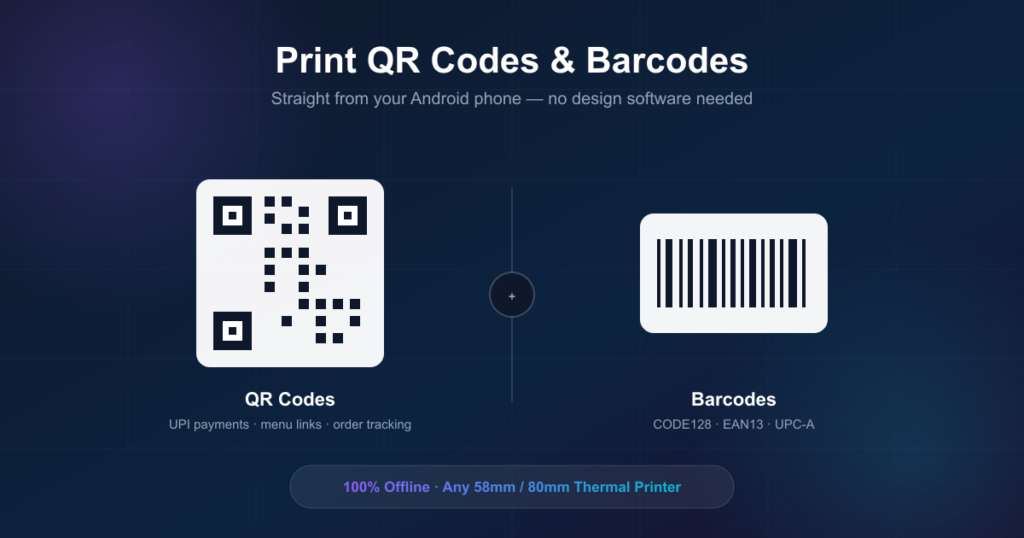
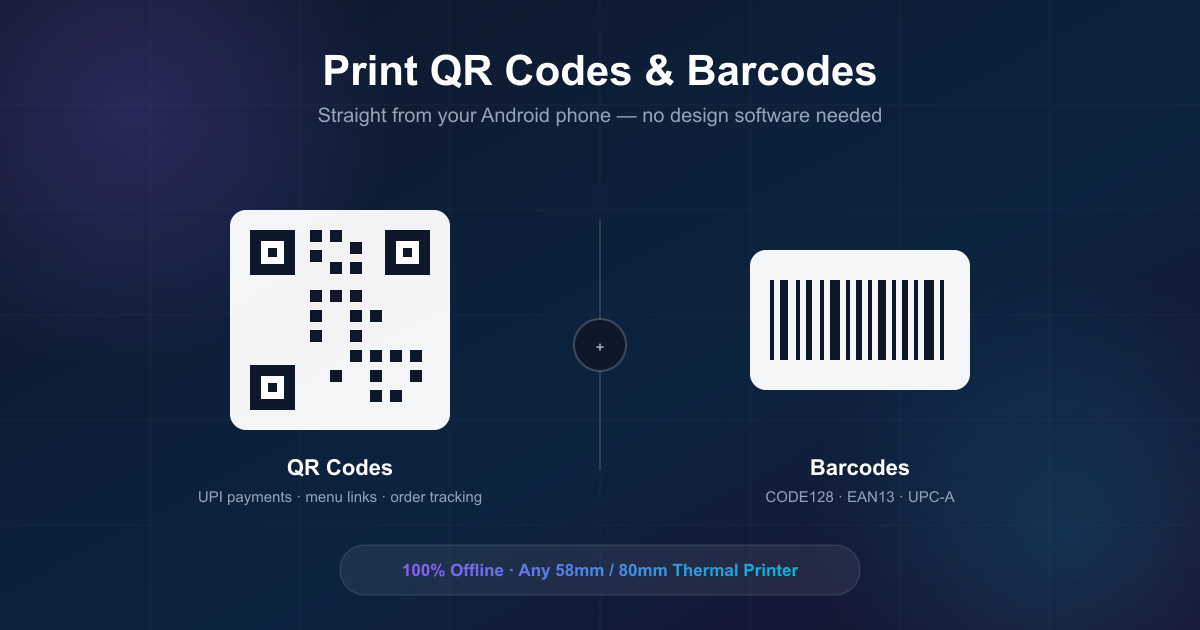
Open Simple Bluetooth Printer and select QR code from the content options. Type or paste whatever the QR code should point to — a UPI payment link, a URL, a WhatsApp number, plain text — and the app generates the code instantly. Tap Print, and it comes out directly on your thermal paper, sized correctly for the roll width you’re using.
Common Uses for a Printed QR Code
- UPI payment confirmation — print a QR linked to your payment ID so customers can scan and pay without you reciting a phone number
- Menu or catalog link — a QR code on a table tent or counter card linking to a digital menu or product catalog
- Order tracking — a unique QR per order for delivery or pickup verification
- Warranty or feedback links — printed on a receipt, linking to a registration or review form
Printing a Barcode
Barcode printing works the same way — select barcode instead of QR, choose the format (CODE128, EAN13, or UPC-A), and enter the value. This is the format retail scanners and POS systems actually expect, so barcodes printed this way scan correctly at checkout, not just visually resemble a barcode.
Common Uses for a Printed Barcode
- Price tags and shelf labels — print a barcode alongside a product name and price for shelf or rack labeling
- Inventory tracking — label stock with scannable codes for faster counting and restocking
- Product labels for resale — useful for shops repackaging or relabeling bulk stock
Why Print Directly Instead of Using a Label Maker App + Sticker Printer?
A dedicated label maker app paired with a separate sticker printer is a second piece of hardware to buy, charge, and carry. Printing QR codes and barcodes directly through Simple Bluetooth Printer means the same thermal printer you already use for receipts also handles codes and labels — no separate device, and no design software needed to generate the code in the first place.
Frequently Asked Questions
Can I print a QR code and text together on the same receipt?
Yes. Simple Bluetooth Printer supports mixing text, QR codes, barcodes, and images in a single print job — useful for a receipt that ends with a payment or feedback QR code.
Does the barcode format matter?
Yes — CODE128, EAN13, and UPC-A are different standards used for different purposes (EAN13/UPC-A for retail product barcodes, CODE128 for general-purpose inventory and logistics codes). Pick the format your scanner or POS system expects.
Do I need internet to generate a QR code?
No. QR codes and barcodes are generated and printed entirely offline — the content you type is encoded directly on the device.
Start Printing
Simple Bluetooth Printer is free to download and prints QR codes and barcodes on any ESC/POS Bluetooth thermal printer, 58mm or 80mm.