Why Your Bluetooth Printer Keeps Asking You to Re-Pair (And How Auto-Reconnect + Print History Fix It)
Why Your Bluetooth Printer Keeps Asking You to Re-Pair (And How Auto-Reconnect + Print History Fix It)
You pair your Bluetooth thermal printer once, print a few receipts, close the app — and the next morning it’s like you never paired it at all. You’re back in Bluetooth settings, searching for the printer, pairing it again. If this happens to you daily, it’s not your printer’s fault, and it’s not random. Here’s what’s actually going on, and how Auto-Reconnect and Print History in Simple Bluetooth Printer and Bluetooth Thermal Printer Plus fix it.
Quick answer: Repeated re-pairing is caused by your phone’s power-saving system dropping the Bluetooth connection when the app isn’t active — not a printer defect. Auto-Reconnect keeps the app managing that connection so it reconnects automatically instead of forcing a manual re-pair. Print History means even if a print gets missed during a reconnect, you can find and reprint it in seconds.
Why This Happens: It’s Your Phone, Not Your Printer
Both Android and iOS suspend background Bluetooth activity to save battery — especially once a device locks or sits idle. If your printing app isn’t the one actively managing the connection, the phone treats it like any other idle Bluetooth accessory and drops it. That’s why the printer seems to “forget” the pairing overnight or after a lunch break at the counter, even though nothing about the printer itself changed.
This is the same root cause we covered in our guide to disconnecting, slow, and cut-off printing — the fix there was manual (disable Auto-Lock, manage the connection from inside the app). Auto-Reconnect automates that fix so you don’t have to think about it every session.
How Auto-Reconnect Works
With Auto-Reconnect enabled, the app keeps track of your last paired printer and re-establishes the connection automatically when you open the app — instead of sending you back to Android’s Bluetooth settings to search and pair from scratch. You pair once, and the app handles reconnecting on every subsequent session.
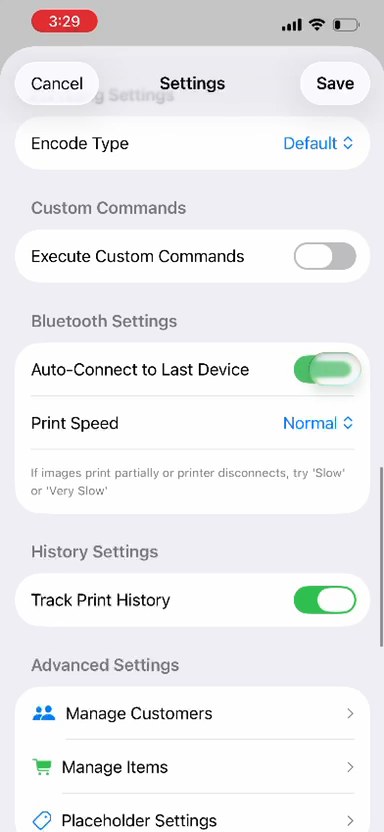
Turning It On
Open Settings inside Simple Bluetooth Printer (or Bluetooth Thermal Printer Plus) and enable Auto-Reconnect. Once it’s on, the app will attempt to reconnect to your last-used printer every time it opens, without a manual “Select Printer” step.
Print History: A Safety Net for Missed Prints
Even with a solid connection, a print can occasionally get missed — a receipt printed right as the connection dropped, or a label you closed the app on before confirming it went through. Print History keeps a record of everything you’ve printed, so instead of retyping content or wondering if something actually printed, you open History and reprint it directly.
Enabling Print History (bottom toggle above) — the actual history list appears once you’ve printed something.
Finding and Reprinting Past Content
Open the app’s More or History section to see your recent prints. Tap any entry to reprint it exactly as it was sent the first time — useful for reprinting a receipt a customer lost, or resending a label without rebuilding it from the placeholder system.
Frequently Asked Questions
Does Auto-Reconnect work on both Android and iOS?
Yes, though iOS’s more aggressive background power management means Auto-Lock should also be disabled while actively printing for the most reliable results — see our full disconnect troubleshooting guide for the iOS-specific steps.
Is Print History available in both Simple Bluetooth Printer and Bluetooth Thermal Printer Plus?
Yes, both apps include Print History and Auto-Reconnect.
Does Print History work offline?
Yes. Print History is stored on your device and works fully offline, the same as core printing.
Stop Re-Pairing Every Session
Update to the latest version of Simple Bluetooth Printer or Bluetooth Thermal Printer Plus, enable Auto-Reconnect in Settings, and let the app manage your printer connection instead of doing it manually every time.
Simple Bluetooth Printer on Google Play →
Bluetooth Thermal Printer Plus on Google Play →